Add the Analyst Agent to Microsoft 365 Copilot
Updated 22 October 2026
Add the Analyst Agent to Microsoft 365 Copilot
Add the Analyst Agent to Microsoft 365 Copilot so people can put workforce questions to it directly inside Copilot. This guide is for your Microsoft 365 admins, who install the TechWolf Analyst Agent app from the Microsoft Teams Store once for the whole organisation, with no per-user installation.
This is TechWolf's own agent. To let an agent you build in Copilot Studio read TechWolf data instead, see TechWolf MCP connector in Microsoft Copilot Studio.
Prerequisites
- Your tenant is connected to TechWolf. Send your organisation's Microsoft Entra tenant identifier to your TechWolf Console admin. They enter it in the TechWolf Console, as described in Connect your Microsoft tenant in the TechWolf Console, or send it to your TechWolf customer success manager. Do this before you install the app.
- People have access in TechWolf. Your TechWolf Console admin gives each person the TechWolf Agent role in the TechWolf Console, as described in Give people access to the Analyst Agent and the MCP connector.
- Microsoft 365 with Copilot, and the right Microsoft roles. A Teams Administrator, or an equivalent role with Manage apps permission, installs the app and assigns it. A Global Administrator grants tenant-wide admin consent. These are often, but not always, the same person.
- A security review. Have your security team review what the integration reads, described under Microsoft 365 Copilot in Security and data handling. Signed-in readers find more detail in Microsoft 365 Copilot data flow.
Steps
-
In the Teams admin center, go to Teams apps, then Manage apps, search for TechWolf Analyst Agent, and open it. This is the app TechWolf publishes in the Microsoft Teams Store, with TechWolf BV as publisher.
-
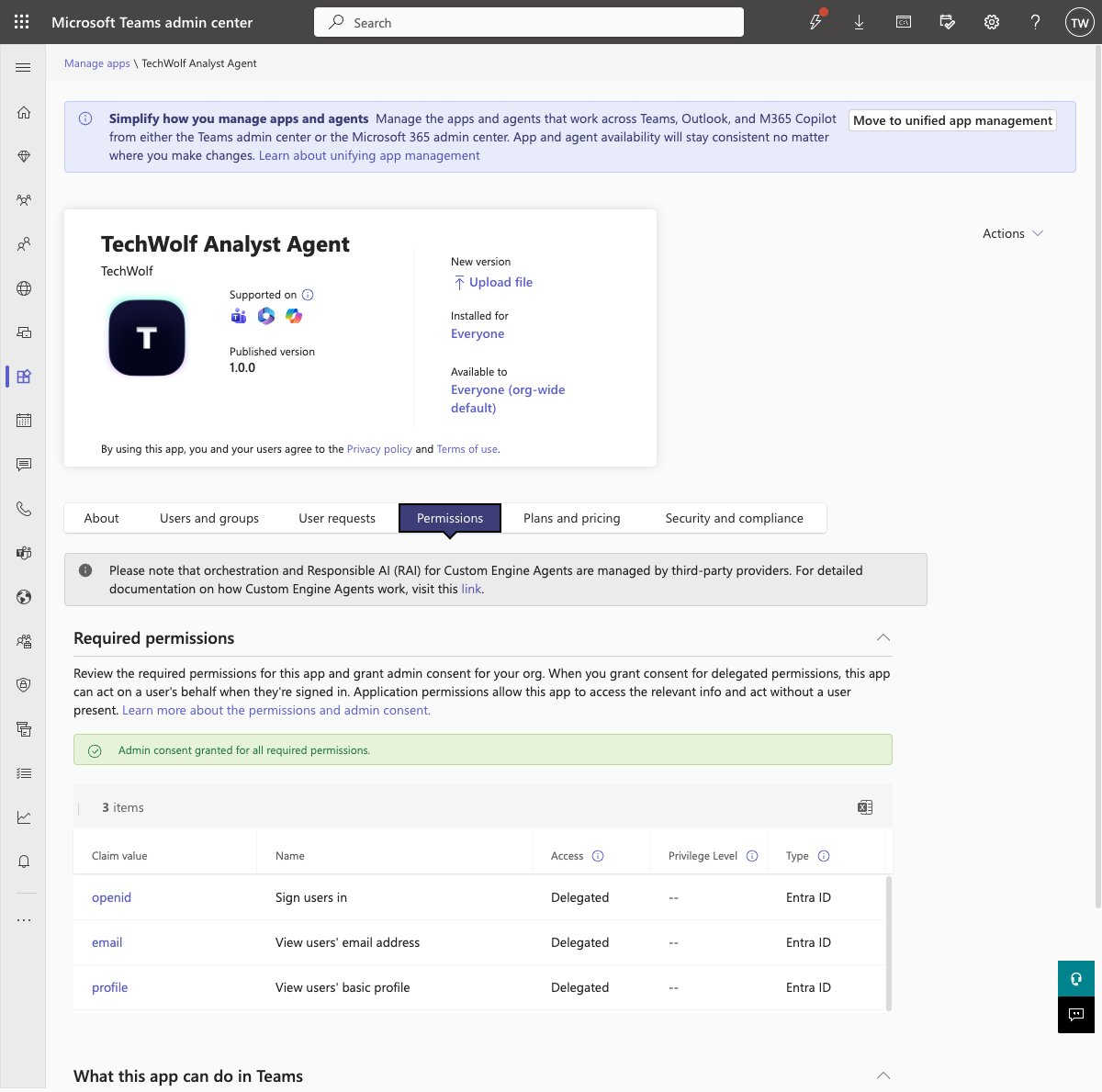
Grant admin consent before step 3, because users cannot grant the permissions themselves. As a Global Administrator, open the app in Manage apps and go to its Permissions tab, review the requested permissions, and select Accept.
-
The tab lists exactly what is granted: openid (sign users in), email (view users' email address) and profile (view users' basic profile).
-
An administrator without the Global Administrator role sees a message to contact one instead of a way to grant.
-
When it is done, the tab shows Admin consent granted for all required permissions.
-
Then tell your TechWolf Console admin that admin consent is granted, so they can record it in the TechWolf Console. If TechWolf connected your tenant, tell your TechWolf customer success manager instead.
-
-
Choose who gets the agent. On the app page, open Users and groups and choose Install app, set Install to Specific users or groups, add the people or groups by name, and apply the change.
- The same controls also govern availability, so you can instead make the agent available for users to add themselves, or do both.
-
Tell the people you chose that the agent is ready, and send them Use the Analyst Agent in Microsoft 365 Copilot.
Verification
Assigned users find the agent in Microsoft 365 Copilot under Agents, and a signed-in user with the TechWolf Agent role gets answers from the organisation's own TechWolf data. It can take a few hours after the installation before the agent appears for users. If you do not have the role yourself, ask one of the people you chose to check.
Additional information
-
Access is granted twice, deliberately. A user needs both the TechWolf Agent role in the TechWolf Console and the app assignment in Teams; the integration grants no access on its own.
-
No separate cost. Using the agent through Copilot draws on the organisation's same credits.
-
The consent covers sign-in only. TechWolf reads no directory, mailbox or file content, and from the user's Microsoft sign-in it uses and keeps only their email address and Entra tenant identifier.
-
Branding is optional. A Teams Administrator can customise the installed app's name, descriptions, icons and accent colour in the Teams admin center; otherwise it uses TechWolf's own.
-
Messages you fix. The other messages each person may see are in the guide you send them in step 4.
What you see What it means What to do "You need to agree to additional permissions", followed by "Something went wrong. Please try again." Admin consent has not been granted for the organisation. If it has, the person's Microsoft account has no email address, or its email domain is not verified in your Microsoft Entra tenant. A Global Administrator grants admin consent (step 2); retrying alone does not resolve it. If consent is already granted, check that the person's account has an email address on a verified domain. People see "Your organization isn't connected to the Analyst Agent yet." Your tenant is not connected to TechWolf yet, or people sign in from a different Microsoft tenant from the one connected. Send your organisation's Microsoft Entra tenant identifier to your TechWolf Console admin (see Prerequisites).